AI 직원이 잘못 배운 것 지우기. AI 직원 역할 바꾸기. erase what an AI employee learned wrong. change an AI employee's role. DoDone(도도네) — 직원 상세 — 형태별 모델, 스킬, 메모리, 지시 이력, 지침 편집, 피로도·수면, 해고와 인수인계. Employee detail — per-format models, skills, memory, task history, instruction editing, fatigue and sleep, firing with handoff.
Employee Management — Details, Memory, Skills, Termination
Hiring employees is just the beginning. As they work, memory and skills accumulate, you need to erase anything they've learned incorrectly, and if they get tired, you should let them rest. This page covers all management tasks you can do in Menu (≡) > Employees.
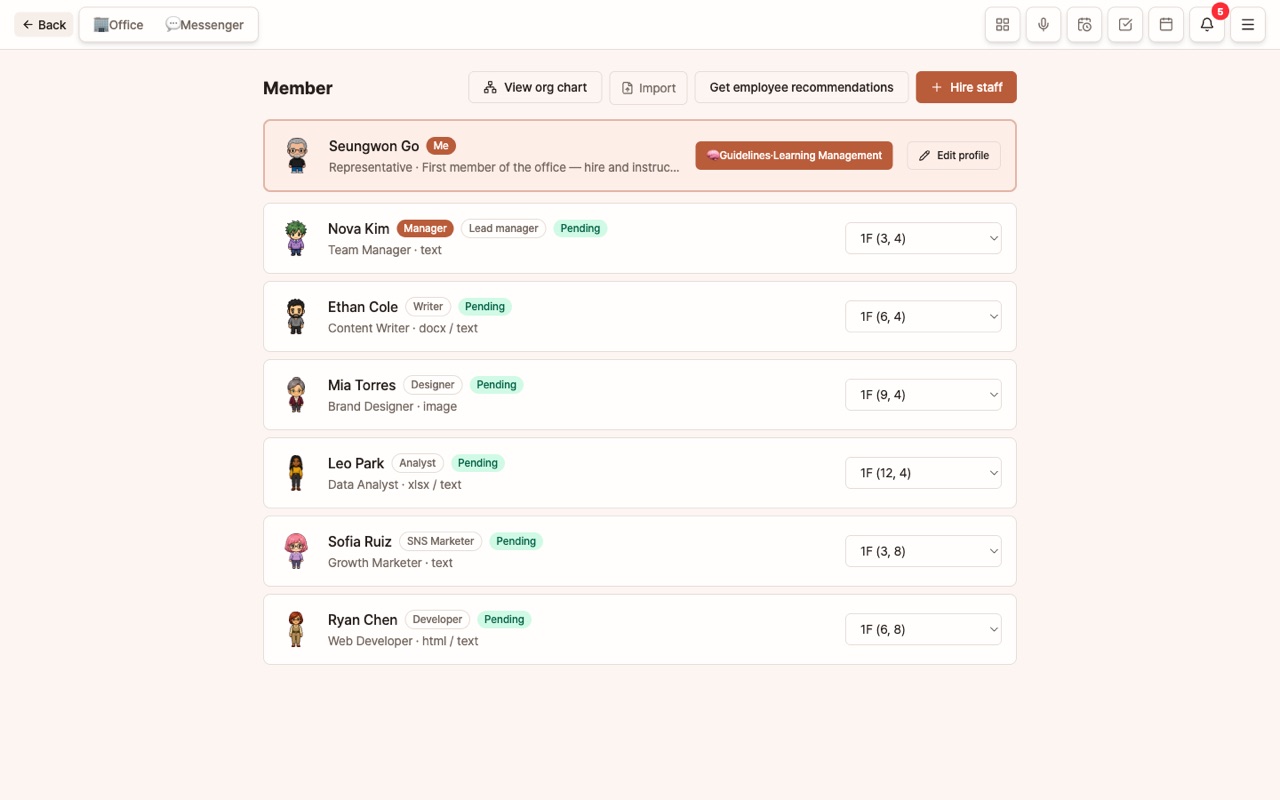
Employee List Screen
- On each member card, you can see their name, role, and status (Working · Tired). Click to view details.
- [Hire]: Add a new employee. [Team Builder]: Suggests a combination of roles based on your goal, allowing you to hire multiple people at once.
- 👑 The Master also appears in the list and has the same detail screen as employees. Master Guidelines & Training
Employee Detail Screen
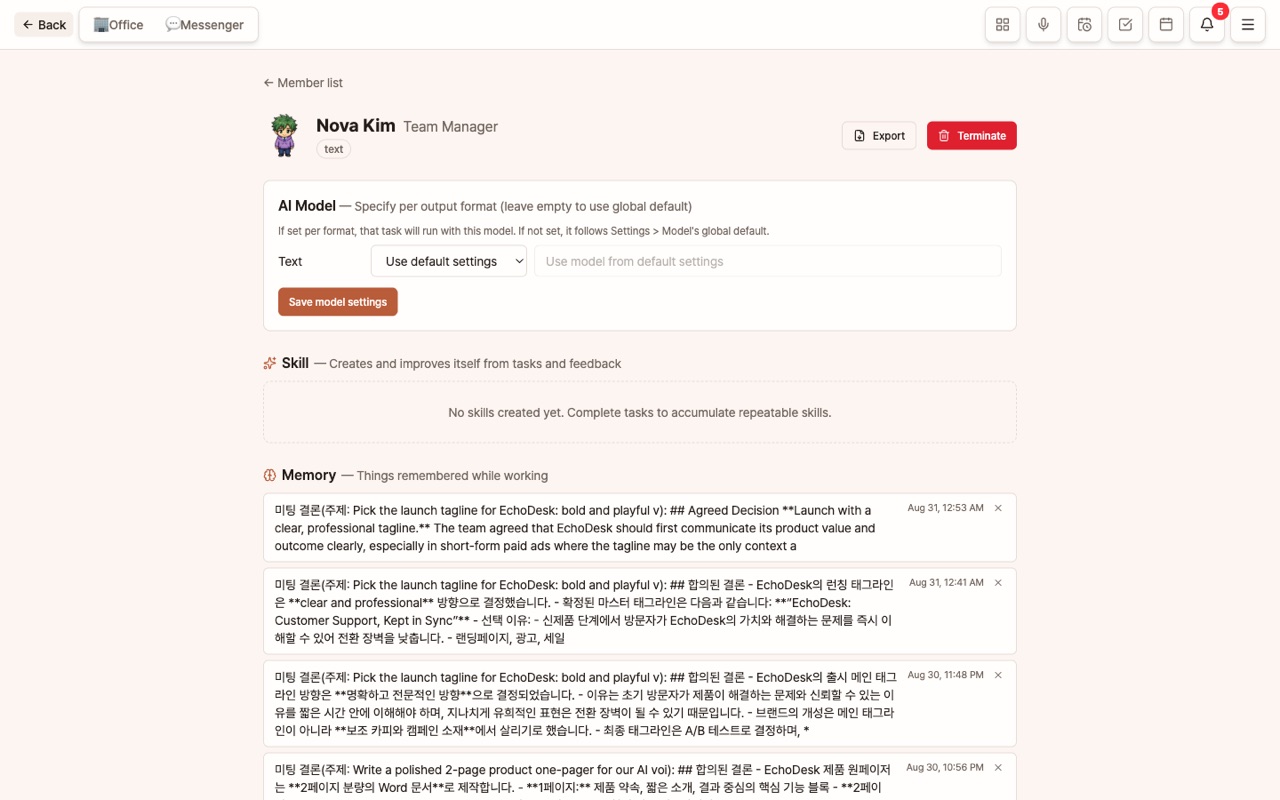
From top to bottom, in order:
AI Model — Assign Per Deliverable Type
You can assign a company and model for each of Text, Word, Excel, PDF, Image, and Web. If left blank, the company-wide default in Settings > Model is used. When you select a company, only models available with that key are shown. For optimal model examples by role, see Hiring Employees.
Skills
A list of skills this employee has learned. Repeated work patterns are automatically accumulated as skills, and 👎 feedback helps improve them. You can disable or delete incorrectly created skills. Company-wide common skills are managed in Skills.
Memory
This is what the employee remembers from their work, plus any persistent preferences (📌) you’ve told them, like “From now on, ~”. If results start coming out strangely, check here first. Delete any old or incorrect memories.
Instruction History
A list of tasks assigned to this employee. You can review the results and costs.
Edit Profile & Guidelines
Change the role chip, name, position, avatar, deliverable types, and work guidelines. Guidelines are “rules that must always be followed.” Unlike memory, they don’t disappear unless you delete them.
Three Ways Employees Grow
| Path | What Accumulates | What You Do |
|---|---|---|
| Work Performance | Work context as memory, repeated patterns as skills | Nothing (automatic) |
| Feedback 👍 👎 🎉 | Direction reflected in memory, skills, and guidelines | Once per result |
| Sleep Capsule | Reviews work history to reorganize skills and memory, level up | Let them rest after big projects |
Fatigue and Letting Employees Rest
Employees may appear tired based on the amount of work done without rest (30+ tasks 😮💨, 60+ tasks 💤) or accumulated memory. Use [💤 Let Rest] at the top of the messenger or approach an overworked employee on the office map to send them to the 3rd-floor Sleep Capsule. While sleeping, they won’t take on new tasks, and when finished, their fatigue is reset and they may level up. For more details, see Office Life.
Termination
Use [Terminate] at the top of the employee detail screen to let them go. In the confirmation window, select a handover employee to transfer any ongoing work. The terminated employee’s memory and skills are deleted, but deliverables and mission results remain, with “(Resigned)” shown on results. The Master cannot be terminated. If you just want to change their role, use Edit Profile & Guidelines instead.
Tips for Use
- Monthly Memory Check: Review each employee’s memory and delete old preferences or incorrect facts. This is the most common reason for dull responses.
- Guidelines vs Memory: Permanent rules go in guidelines, situational info goes in memory. “Always use polite language” is a guideline; “This season’s focus is iced drinks” is memory (or Knowledge Base).
- Hire two people for the same role with different models to compare results.
FAQ
Q: What’s the difference between employee memory and the company knowledge base?
The Knowledge Base is company facts shared by all employees; memory is each employee’s own experience and preferences.
Q: Is there a limit to the number of employees?
It depends on your plan. Check the current plan limit in Settings > Subscription.