AI에 도구 붙여서 쓰는 프로그램. 확장 가능한 AI 업무 도구. extend AI with tools and connectors. extensible AI work platform. DoDone(도도네) — 플러그인(도구)·커넥터(외부 서비스)·스킬(노하우)의 차이와 켜고 끄는 방법. Plugins (tools), connectors (external services), and skills (know-how) — what each is and when to use it.
Plugin · Connectors — Equipping Employees with Tools
What an employee can do is determined by plugins and connectors. Plugins are built-in tools (documents, images, videos, Gmail, etc.) that DoDone has prepared in advance. Connectors are extension channels that let you directly connect any external service you want. This is different from Skills, which teach employees how to work.
| Category | One-line Definition | Management | In Chat |
|---|---|---|---|
| Plugin | Built-in tools | Settings > Plugins | $plugin |
| Connector | External service connection (MCP) | Settings > Connectors | $connectorname |
| Skill | Best practices & know-how | Settings > Skills | /skill |
Plugins — Built-in Tools, Just Turn Them On
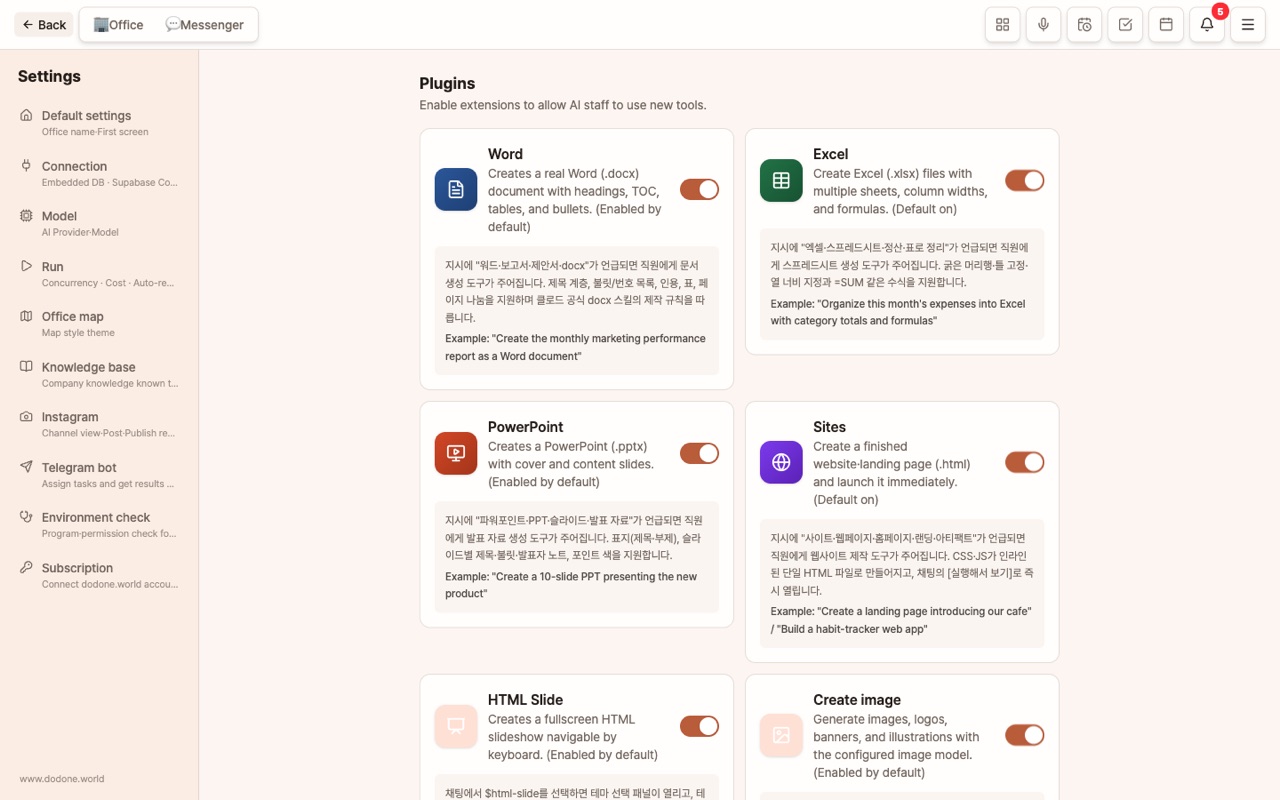
You can turn plugins on or off in Settings > Plugins. When enabled, they are used automatically when relevant to the instruction, and if you specify $name, they are chosen without further evaluation.
Documents · Deliverables (Enabled by default)
- Word / Excel / PowerPoint — Reports, tables, presentations
- Sites — Websites, landing pages, web apps as a single HTML file
- HTML Slides — Full-screen slideshow
- Create Image — Logos, banners, illustrations (
$image) - Script Automation — Employees can write and run scripts for API integration and periodic checks
Optional (Enable when needed)
- Remotion — MP4 video rendering. Enable when you need videos, as it requires installation space.
- Music Generation / TTS — BGM, songs, voice
- Playwright — Read web pages, take screenshots (uses system Chrome/Edge)
- Media Download — Download videos or audio from URLs like X, YouTube, Instagram (public), TikTok, etc., and save as deliverables. After enabling, [install the download module](yt-dlp, about 35MB for Mac) once. If ffmpeg is present on your system, you can merge high-quality files or convert to mp3. Use only within copyright and platform terms.
- Computer Use (Disabled by default) — Directly control your computer by viewing the screen, clicking, and typing. On macOS, screen recording and accessibility permissions are required.
- Gmail · Google Calendar · Google Drive · Notion · Slack · Mac Calendar — Read/write for each service. For connection methods, see External Integrations.
The more tools you enable, the more choices employees have, which may slow down decision-making. Only enable what you need.
Connectors — Connect Any MCP Service
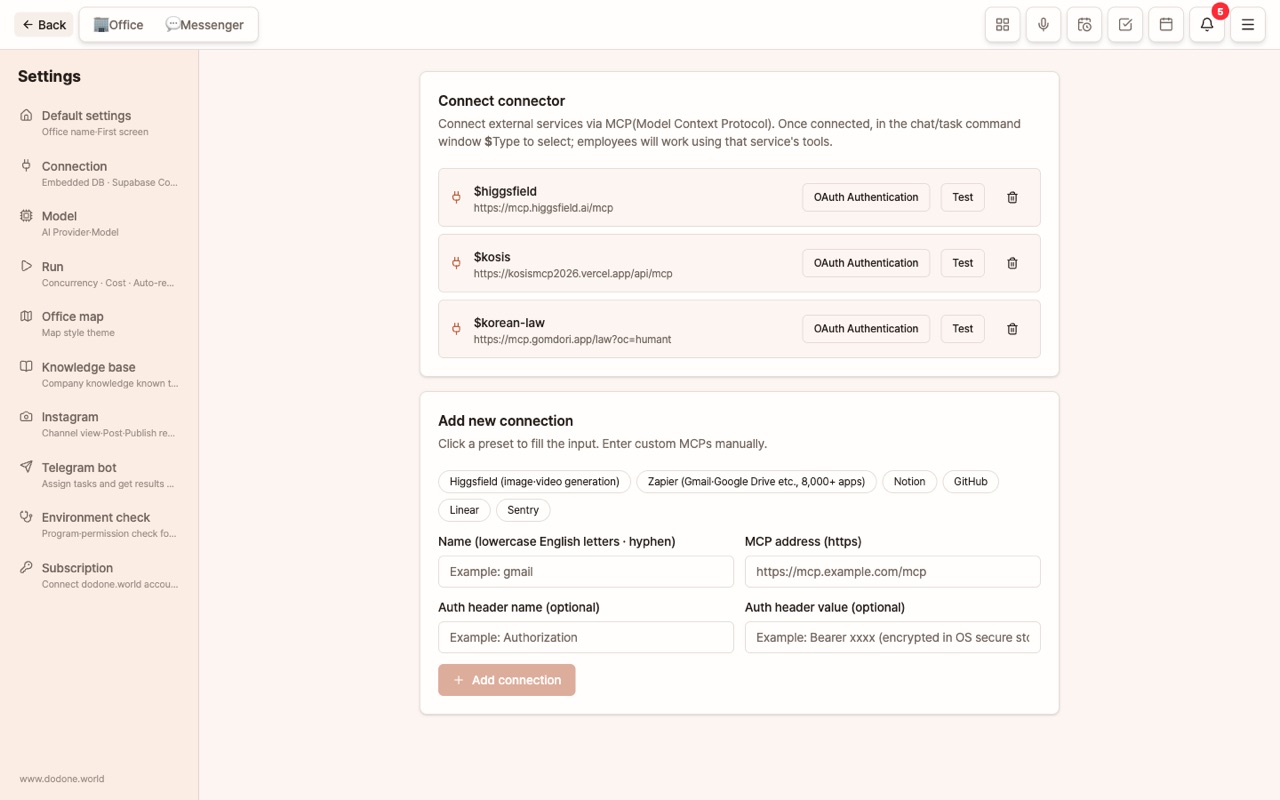
MCP (Model Context Protocol) is a standard for connecting external services to AI. In Settings > Connectors, paste the MCP URL provided by the service, and if OAuth is required, log in via [Authenticate] or add the token to the header. Afterwards, use $servicename in chat.
Examples: Zapier (Gmail, Drive, Calendar all at once), Notion, Higgsfield (image/video generation), GitHub, Linear. Generated media URLs are downloaded and displayed as deliverables in chat.
Since connectors grant actual access to the service, only connect trusted official MCPs. Tokens are encrypted and stored in your computer's OS security storage.
When to Use What
- "I want to create this deliverable (document, image, video, site)" → Plugin
- "I want employees to handle my Gmail, Notion, or other SaaS" → Plugin (provided by default) or Connector
- "I want this task to be done well and consistently every time" → Skill
FAQ
Q: If I turn off a plugin, will existing deliverables disappear?
No. Created files remain as they are; you just won't use that tool in new tasks.
Q: Can I connect internal company tools as well?
If you have an MCP server, you can connect it via a connector.