데이터 유출 걱정 없는 AI. 로컬 저장 AI 업무 도구. AI without data-leak worries. local-first AI work tool. DoDone(도도네) — 데이터는 내 컴퓨터와 내 Supabase에만 — 백업·보안·업데이트 정책 안내. Your data lives only on your machine and your Supabase — backup, security, and update policy.
Data · Security · Updates — My Data Stays with Me
DoDone does not use any servers. The app is the backend. Your work data is stored on your computer (or your own Supabase), secret values are kept in your operating system’s secure storage, and files are in your own folders. This page explains what is stored where and how it is protected.
What is Stored Where
| Data | Storage Location |
|---|---|
| Employee, project, conversation, memory, and Work App data | Local database on your computer or your own Supabase (ai_office schema) |
| Deliverable files | Your computer (primary) + your Supabase storage (backup) |
| API keys, DB connection info, integration tokens | Encrypted in your operating system’s secure storage (such as Keychain) |
| DoDone server | Only for subscription/license checks. No work data stored. |
- Secret values are never shown in plain text on screen, in logs, or in responses (they are masked).
- The app will never touch anything outside the
ai_officeschema in your Supabase. - When assigning tasks to an AI provider, the prompt for that task (including knowledge base and memory) is sent. Do not include any information that must never leave your system.
BYOK — Connect Your Own Key
DoDone does not handle AI usage fees. Each company enters their own API key issued by the provider, and pays directly for what they use. You can change or remove your key at any time.
Backup and Migration
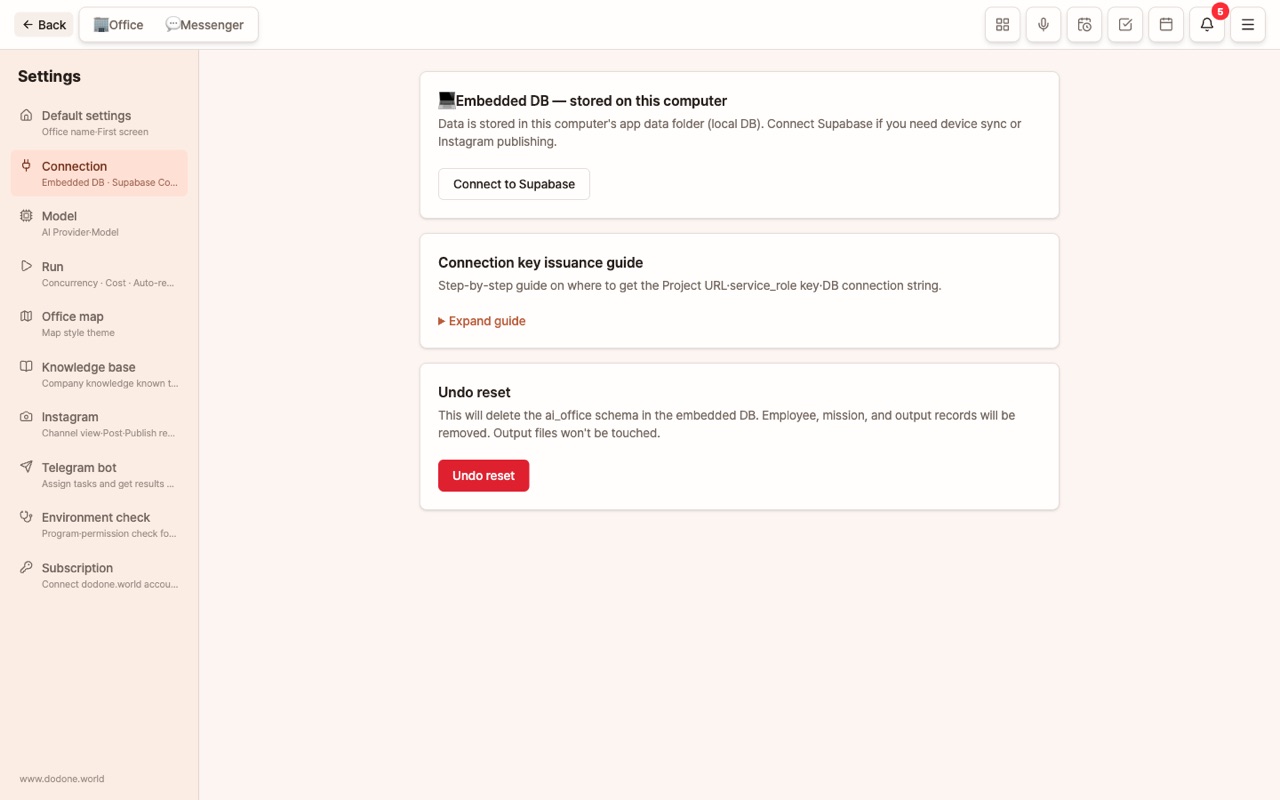
- Local DB: Back up the entire app data folder (check the location in Settings > Connection).
- Supabase: Since your data is already in the cloud, you can simply enter the same connection info on a new computer to continue.
- Export/Import Connection Backup (password protected): Safely transfer your connection info.
Updates
- In-app updates (from 1.0.7): The app checks for new versions at startup and every 4 hours. By default, updates are manual—if a new version is available, a banner appears at the top. Click [Update] to download, then [Apply on Restart] to install.
- If you close the banner, you won’t see it again for that version, but you’ll be notified if a newer version is released. You can always check manually via Menu (≡) > Check for Updates or [Check Now] in Settings > General.
- Switch to automatic updates: In Settings > General > Update Method, select "Automatic Updates" to have updates downloaded in the background and installed when you restart or close the app.
- For version 1.0.6 and below, click the "🎉 New Version — Download" banner to get the installer file. Install it once manually, and future updates will be automatic.
- The macOS installer is signed and notarized with an Apple Developer ID, so it opens without warnings. The Windows installer is not yet signed, so you’ll need to click [More Info → Run] in SmartScreen.
- Installing a new version does not affect your data. Any necessary database changes are applied automatically on first launch.
- Versions with important changes may require a mandatory update.
FAQ
Q: Is my data stored on the DoDone server?
No. All work data, deliverables, and API keys are stored only on your computer and your Supabase.
Q: What if I lose my computer?
If you used the local DB and have no backup, your data will be lost. For important data, we recommend connecting to Supabase.
Q: Can I share with other employees?
Multiple computers connected to the same Supabase project will see the same office. Please avoid assigning tasks to the same employee at the same time.