게더타운처럼 캐릭터로 다니는 AI 오피스. 메타버스 오피스에서 AI 직원과 일하기. an AI office you walk around like Gather. work with AI employees in a metaverse office. DoDone(도도네) — 게더타운식 2D 가상 오피스맵과 메신저 뷰 — 도도네의 핵심 개념과 화면 구성 안내. The Gather-style 2D virtual office map and Messenger view — DoDone's core concepts and UI tour.
Take a Tour of the Screen — What’s Where
DoDone mainly works with two screens: Office Map and Messenger. Everything else opens from the top right Menu (≡). This page gives you a quick overview of the core concepts and the role of each screen.
Core Concepts in 3 Minutes
| Concept | What is it? | Everyday Analogy |
|---|---|---|
| Master (Me) | The user. Marked with 👑. If you assign tasks in the Master channel, an AI acts on your behalf | Boss |
| Employee | AI with a set role. Each has a character, desk, memory, and skills | Team member |
| Project | Workspace grouping multiple employees. Shares project context | Project task force |
| Mission (Task) | A single instruction. Once completed, it’s saved in "Mission Results" | Work ticket |
| Deliverable | Files created by missions (docx, xlsx, pptx, pdf, image, video, audio, HTML) | Output |
| Skill | Procedures/know-how for specific tasks. 100+ built-in | Work manual |
| Plugin | Tools for docs, images, video creation, or external services | Office equipment |
| Work | Frequently used instructions saved for one-click execution | Work template |
Office Map — Main Screen
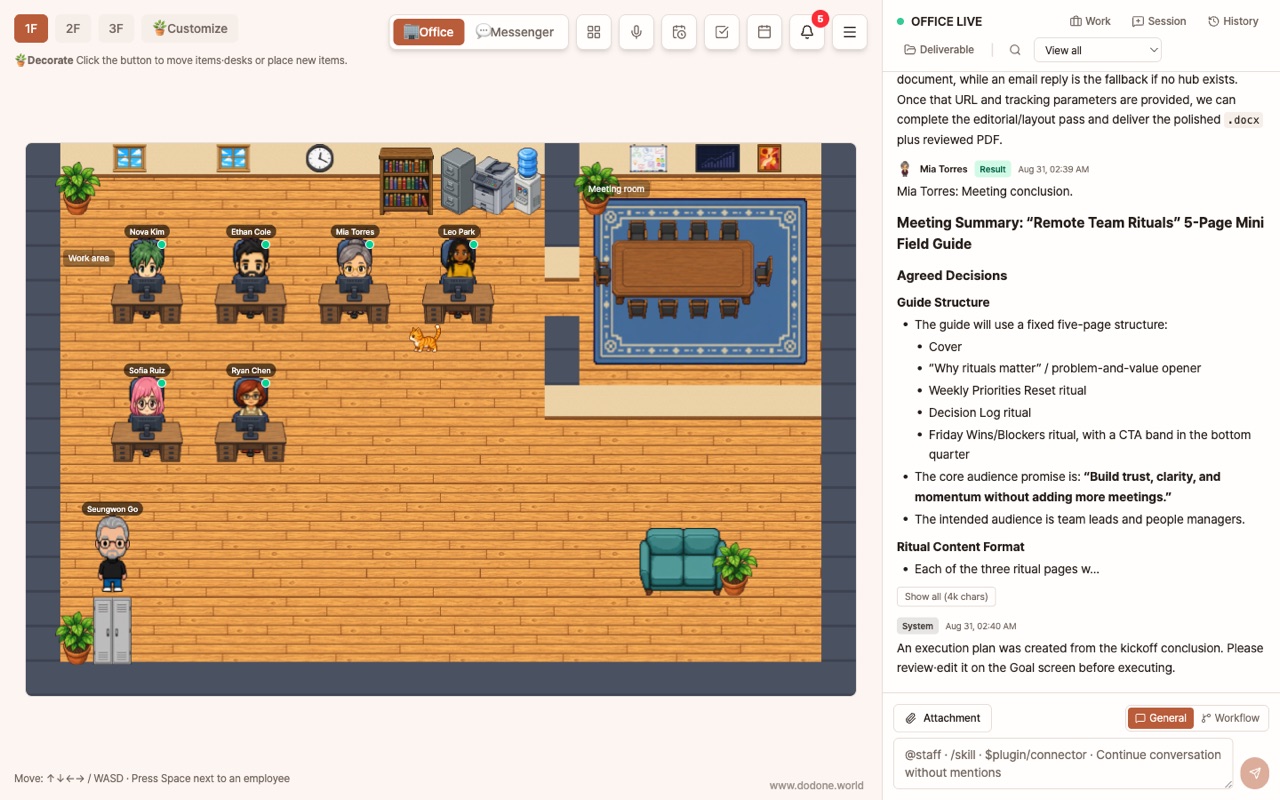
This is a pixel art office. Use the arrow keys to move your character. When you approach an employee’s desk, a prompt appears so you can give instructions instantly with Space.
- Icons above employees’ heads: 💼 Working, 😮💨 Tired, 💤 Overworked. See your team’s status at a glance.
- Move between floors with the floor buttons (1st, 2nd, 3rd). The 3rd floor lounge has the Sleep Capsule (for employee refresh) and decoration items.
- Top right: 🕒 Scheduler, 🔔 Unread Result Notifications, ≡ Menu.
- Top left: Switch between 🏢 Office / 💬 Messenger screens.
The Office Map is a "fun entry point." If game controls are inconvenient, you can use just the Messenger—features are exactly the same.
Messenger — Chat Like KakaoTalk
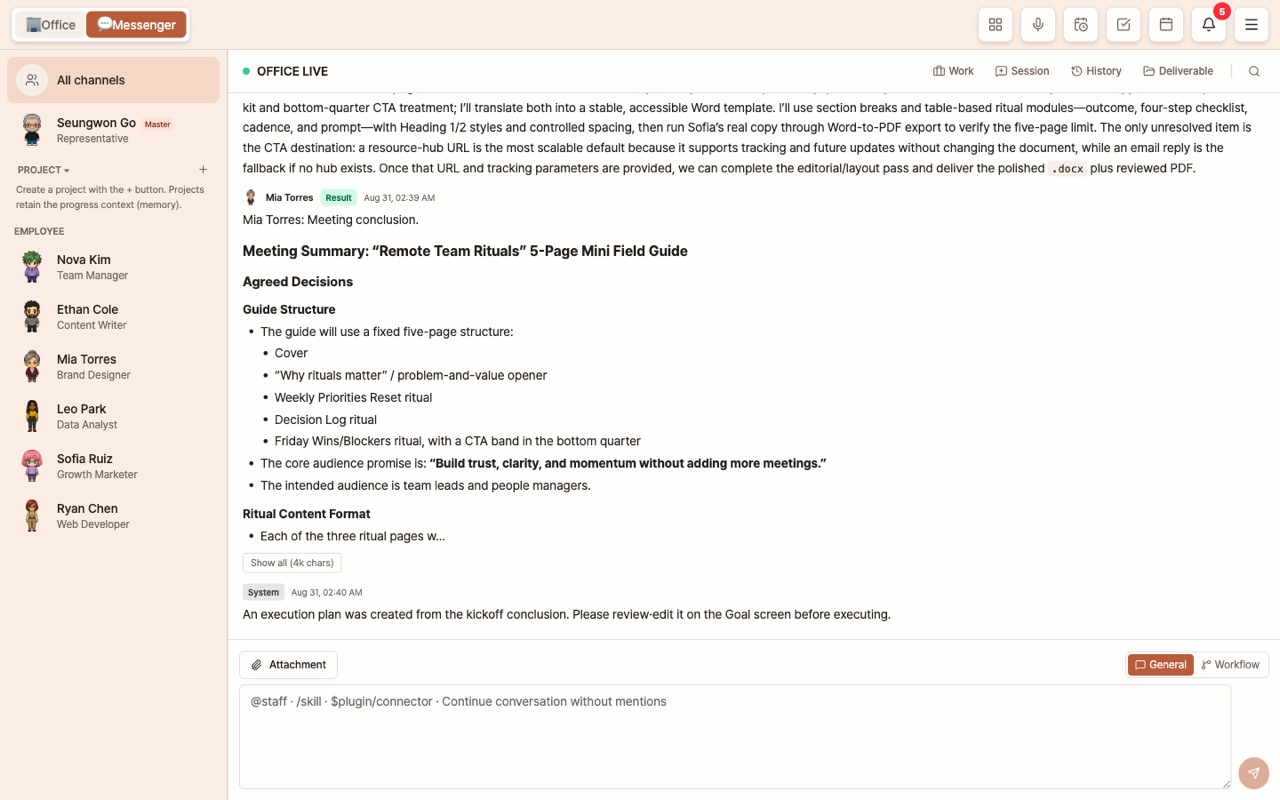
Select a channel from the list on the left and chat on the right.
- All Channel: The flow of the whole office. If you give instructions without a mention, they’re handled according to recent chats and manager rules.
- 👑 Me (Master): For handling things yourself or delegating to employees.
- Project: Give instructions to the team within the project context.
- Employee: 1:1 instructions. If they’re working, a "busy" indicator appears on their avatar.
At the top of the chat are [Session] [History] [Work] [Deliverables] [☕ Coffee Time] [💤 Put to Sleep] buttons. Each is explained in Session & Deliverables Panel, Work, and Office Life.
Menu (≡) — All Subscreens
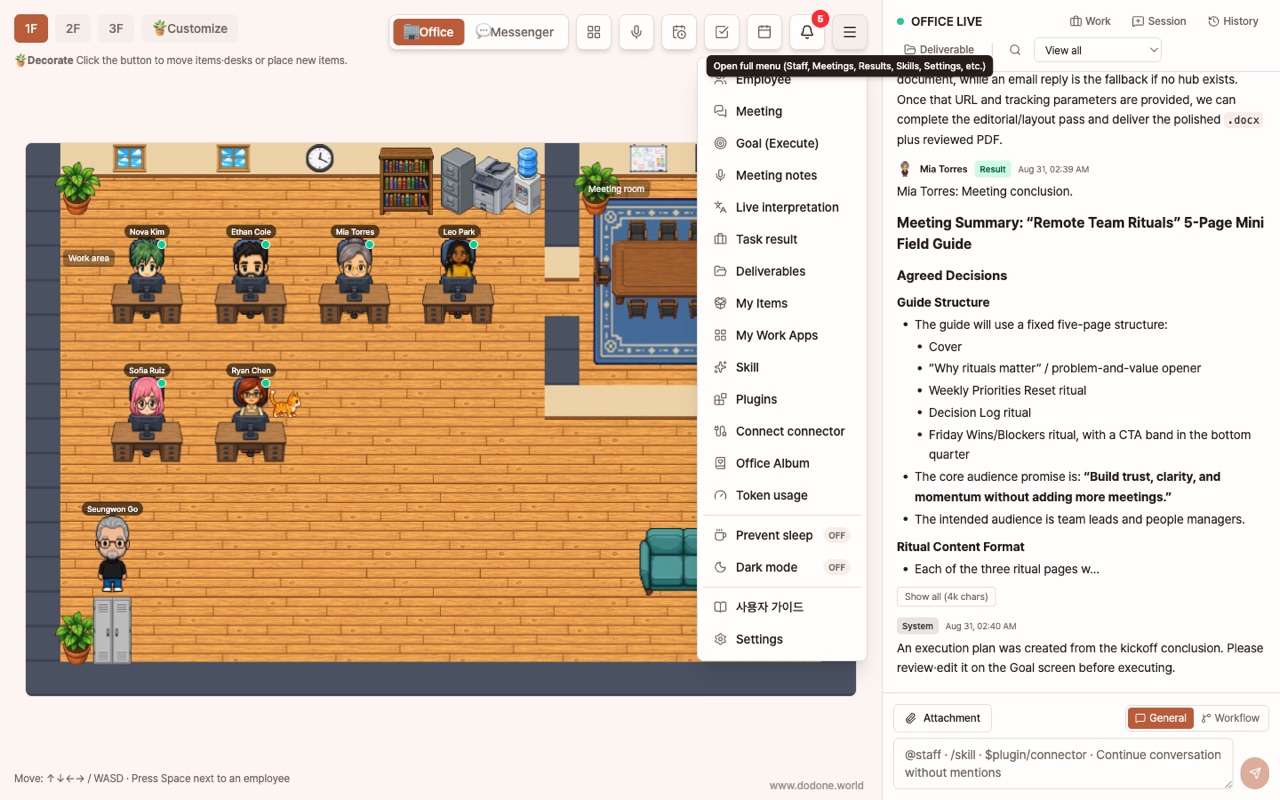
| Menu | What it does | Guide |
|---|---|---|
| Employees | Hire, list, details, team builder, fire | Hire Employees · Manage Employees |
| Meetings | Two or more employees discuss a topic → conclusion | Teamwork |
| 🎯 Goal | Automatically complete kickoff → plan → execution → review for a single goal | Goal |
| Meeting Notes | Record, upload, paste → transcribe → summarize & to-dos | Meeting Notes |
| Mission Results | List, details, and costs of completed missions | Session & Feedback |
| Deliverables | View, preview, and delete created files | Deliverables |
| My Work Apps | Run work apps from the Work Store | Work Apps |
| Item Store · Album | Office decoration items, photo booth pictures | Office Life |
| Live Translation | Real-time voice translation | Live Translation |
| Token Usage | AI costs by model, employee, and period | Cost Management |
| Settings | Connections, models, General, Knowledge Base, Execution, Office Layout, Plugins, Skills, Connectors, Instagram, Telegram, Environment Check, Subscription | See each document |
| User Guide | Opens this web guide in your browser | — |
How to Use
- Start your day with the messenger’s 🔔 Unread Results. All the results generated overnight by scheduled tasks are gathered here.
- If you frequently assign tasks to a certain employee, move them closer to your spot in Settings > Office Layout to shorten the path on the office map.
- If the screen colors are hard on your eyes, choose from 6 color themes in Settings > General > Theme.
FAQ
Q: Do I have to use the office map?
No. You can give the same instructions anywhere, whether in the messenger or in the employee details.
Q: Is my character’s position saved?
Yes, it’s saved only on your computer, so you’ll start in the same spot next time you launch.
Q: It looks like a game—does it require a high-spec computer?
No. It runs smoothly on a regular work laptop.