목표만 주면 알아서 일하는 AI 팀. AI 에이전트 오케스트레이션 도구. an AI team that runs a whole goal by itself. AI agent orchestration for solo founders. DoDone(도도네) — 목표 하나면 킥오프 미팅→실행 플랜→자동 실행→회고까지 AI 팀이 완주하는 Goal 기능. Give one goal and the AI team runs kickoff → plan → execution → retrospective on its own.
Goal — Run the Whole Team with a Single Objective
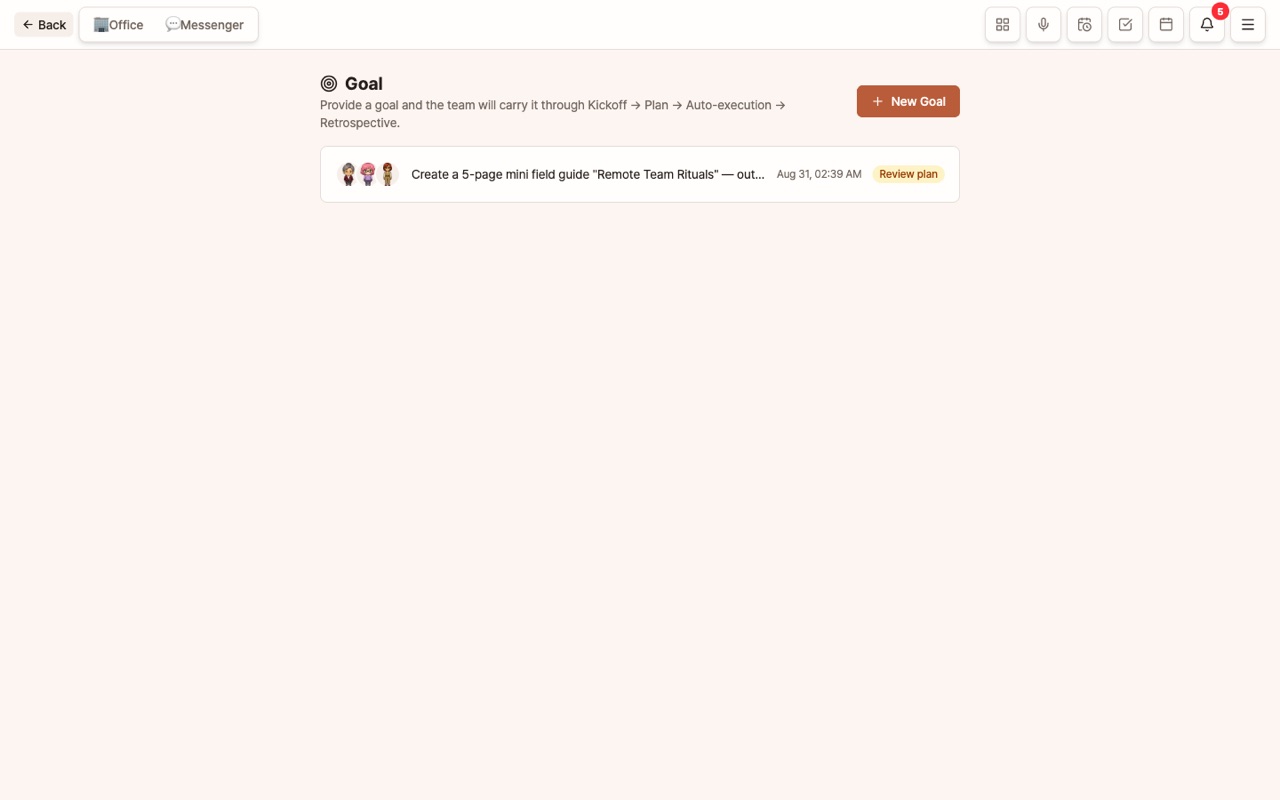
This feature lets your team go from kickoff meeting → execution plan → automated execution → retrospective, just by stating a single goal, like "Prepare for the new product launch." You don’t have to assign every task to each person. Open it from Menu (≡) > 🎯 Goal.
When to Use
- Big projects needing multiple deliverables: "Launch prep — intro page, card news, press release"
- Projects where you’re not sure how to divide the work: "Find ways to increase sales by 20% and create the first action plan"
- Projects where documenting the process is more important than the result: kickoff and retrospective conclusions are saved in employee memory
If one employee can finish the task at once, a regular instruction is faster and cheaper.
Workflow
- Enter Goal: State what you want to achieve and select kickoff attendees (at least 2 employees, everyone by default). Estimated cost (AI call count) is shown before starting.
- Kickoff Meeting: Attending employees discuss and finalize the approach.
- Automatic Execution Plan Creation: Based on the meeting conclusion, a step-by-step plan (with assignees and instructions) is generated.
- Edit in Preview → [Execution]: Review and edit the assignees and instructions for each step, then execute. A person must approve before execution.
- Automatic Completion: Steps are executed sequentially or in parallel, and progress is shown in real time. For each step, use [View Result] to see the outcome, and check the 📎 Deliverables card and 📋 Final Execution Report right from the Goal screen (for detailed conversation flow, see [View Mission Timeline]).
- Retrospective Meeting: A retrospective to evaluate results opens automatically, and conclusions are saved in the attendees’ memory.
- Final Summary: In the wrap-up section, review the summary and final deliverables list, open files, or view them in the folder.
- Follow-up Goal: At the bottom of the completion screen, immediately start the next goal that builds on these results. Previous summaries and deliverables are automatically handed over.
Example: 30-page book draft Goal → follow-up "Complete the full manuscript in Word using this draft."
Good Goal Statements
| Instead of This | Try This |
|---|---|
I want to do marketing well | Increase Instagram followers by 500 in September — 12 post drafts, publishing schedule, and 3 ad copy options |
Improve the homepage | Suggestions to improve the homepage main screen text and layout, a new set of texts, and supporting materials included |
If you write measurable completion criteria, the plan will be more accurate.
Good to Know
- If execution succeeds, the goal is considered complete even if the retrospective fails.
- If you stop midway, ongoing missions are canceled, but already created deliverables remain.
- Start your first Goal small to check your team’s synergy, then scale up.
FAQ
Q: What’s the difference between Goal and Workflow?
With Workflow, you design the steps yourself. With Goal, employees design the steps during the kickoff.
Q: How much does it cost?
Estimated call count is shown before starting. Kickoff and retrospective meeting costs depend on the number of attendees and turns.