화면은 한국어 결과물은 영어로. AI 오피스 테마 색 바꾸기. Korean UI with English outputs. change AI office theme color. DoDone(도도네) — 기본설정 — 화면 언어와 작업 언어의 차이, 테마 6종, 오피스 이름·배치, 환경 점검. General settings — UI language vs. working language, 6 themes, office name and layout, environment check.
General — Language, Theme, Office, and Readiness Check
Settings > General is where you make the app "yours." Set the display language, deliverable language, color theme, company name, and office layout.
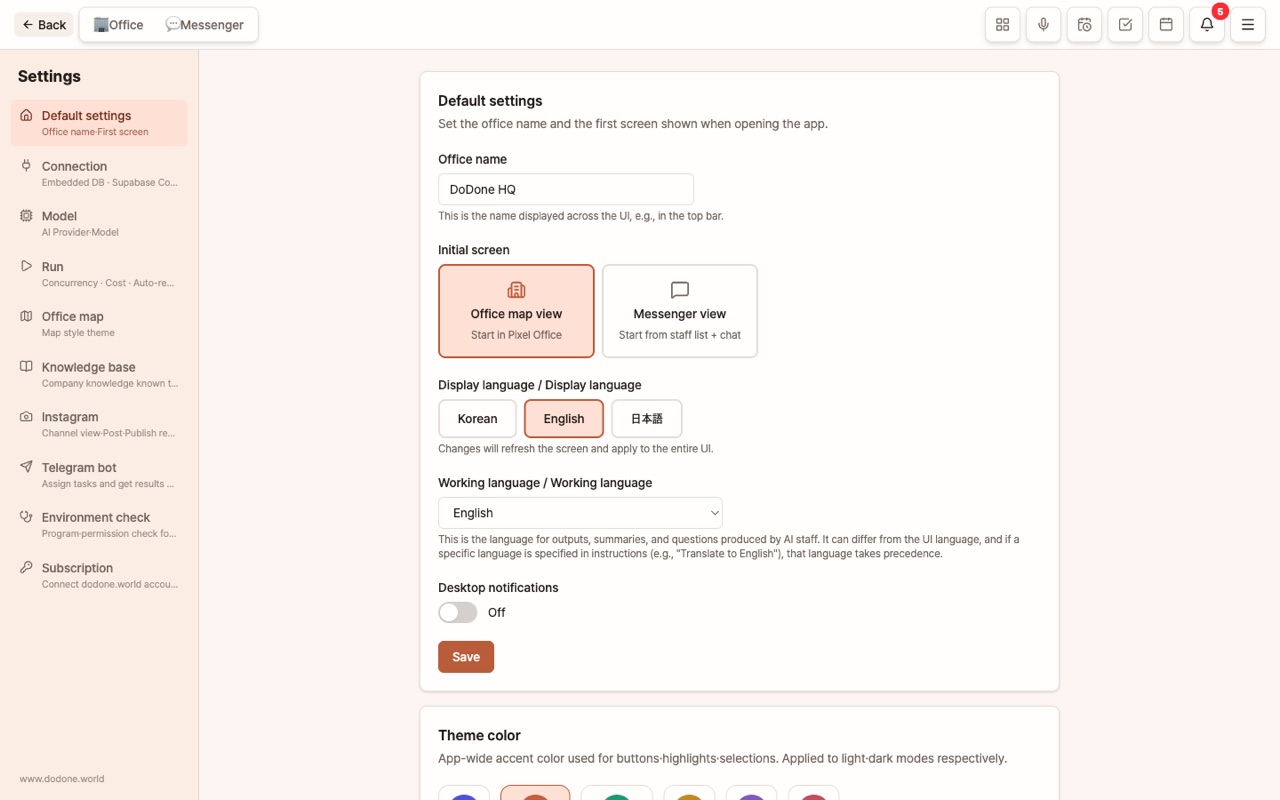
Office Name
This appears in the messenger header and on the office map. Enter your company name.
Display Language vs. Work Language
| Setting | What it changes | Example |
|---|---|---|
| Display Language (Korean·English·Japanese) | Menus, buttons, messages | View the app in English |
| Work Language (21 languages) | The default language for deliverables, summaries, and questions created by employees | Display in Korean, deliverables in Japanese |
If you specify a language in your instructions (e.g., "Translate to English"), that language always takes priority. For multilingual Work Apps like menus or guides, the work language is the original, and the others are translation targets.
Display Theme
Use the Display Mode switch to choose light or dark mode, and pick your accent color from six options: Blue, Terracotta, Teal, Honey, Plum, or Rose. This applies to the background, sidebar, and accent colors. (Dark mode is enabled here, not in the menu.)
Office Layout
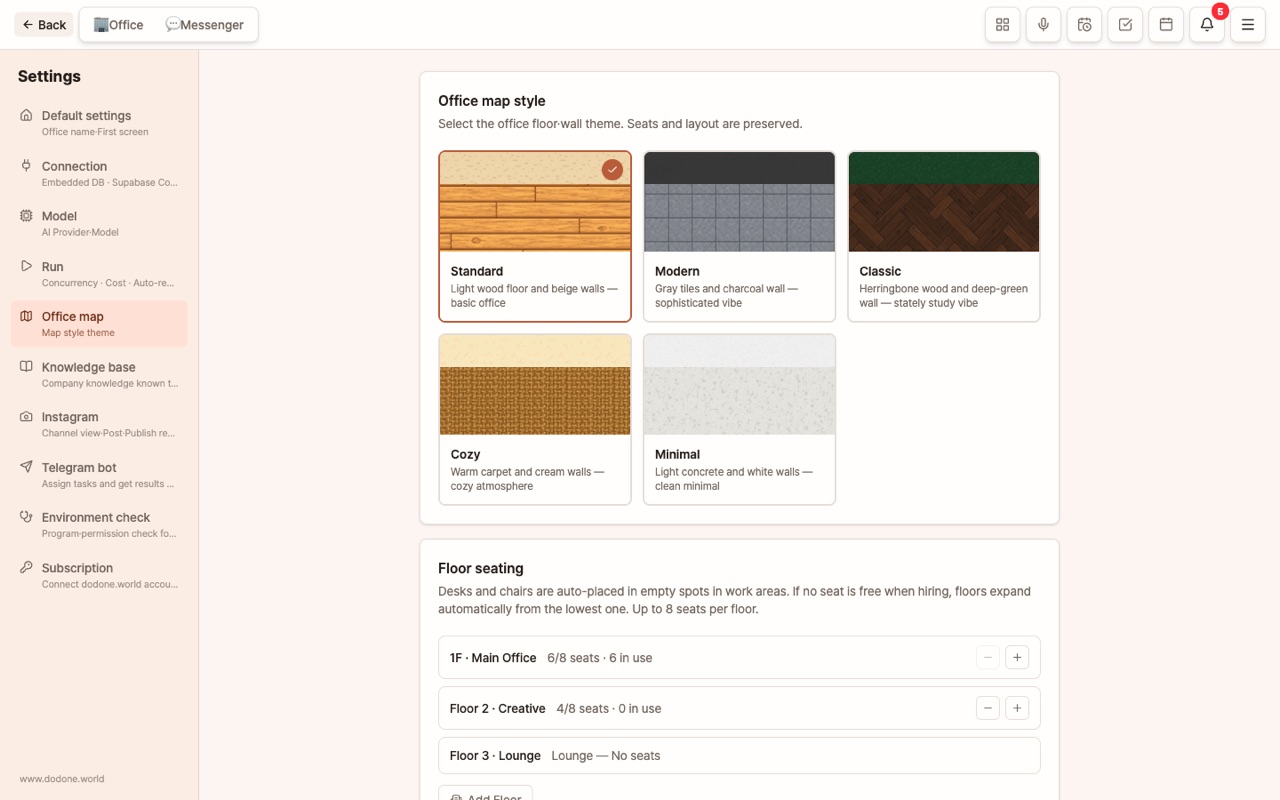
In Settings > Office Layout, you can move employee seats. Place frequently called employees near your spot to shorten office map routes. Arrange furniture and items in the office map's decorate mode. Office Life
Environment Check
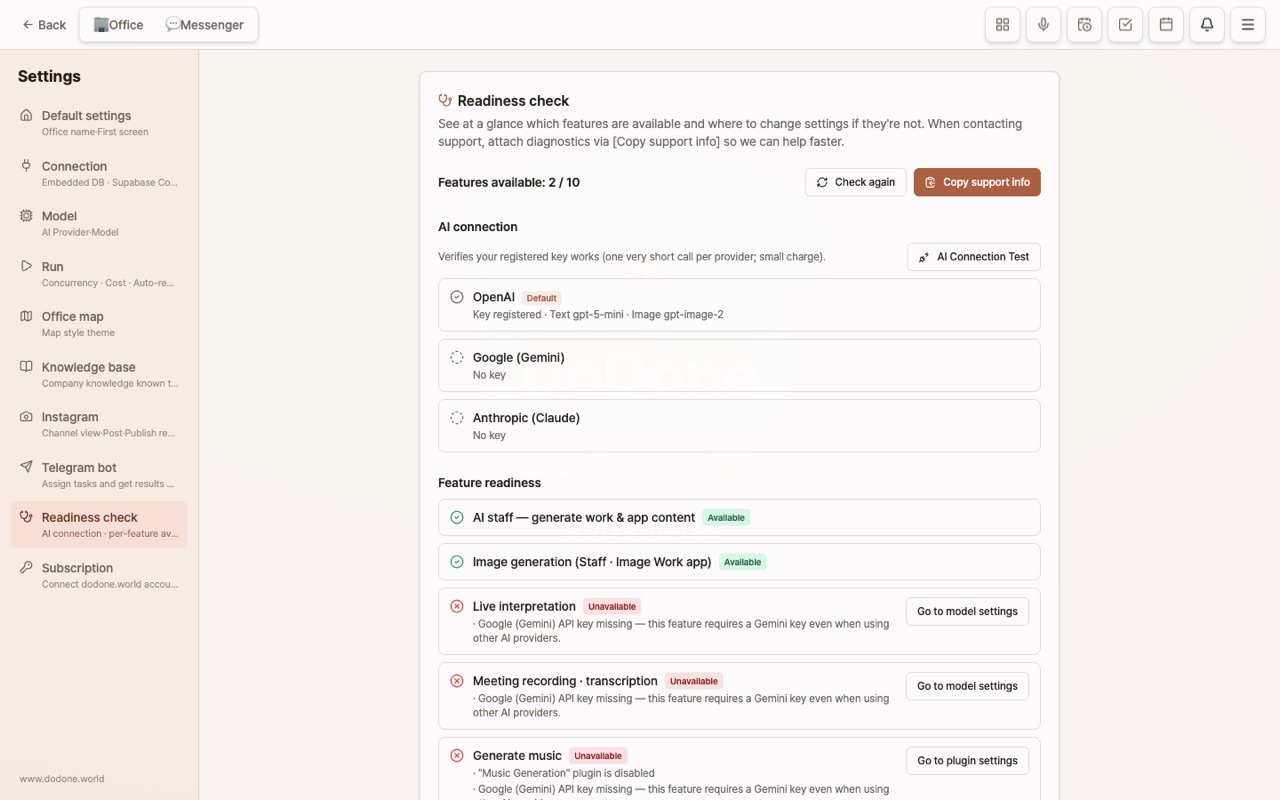
Settings > Environment Check is the first screen to open when you wonder, "Why isn't it working?" (Formerly called: Environment Check.)
- AI Connection — Shows your registered OpenAI, Google (Gemini), and Anthropic keys, as well as text and image models. When you click [Test AI Connection], it makes a very short call with each key to check if they're actually working (e.g., key errors, insufficient balance).
- Feature Readiness — Shows whether AI employee tasks, image generation, live interpretation, meeting notes, music, voice (TTS), video creation, video/audio downloads, web automation, and screen control are Available / Partially Available / Unavailable. It also provides reasons for unavailability and buttons to fix them. For example, even if you use a different AI by default, live interpretation and meeting notes still require a separate Google (Gemini) key.
- Programs & Permissions — Python, Node.js, Chrome used by optional features, and macOS permissions for microphone, screen recording, and accessibility.
- [Copy Info for Support] — Copies app version, OS, enabled plugins, feature status, and recent errors. API keys and original instructions are not included, so you can safely paste this when contacting support for faster help.
For features like live interpretation, meeting notes, or image Work Apps that require specific keys or plugins, you'll be notified the moment you enter if anything is missing, even if you don't visit this screen.
Subscription
In Settings > Subscription, connect your dodone.world account and check your plan and limits. Initial Setup
FAQ
Q: If I change the language, will it update deliverables I've already created?
No. It only applies to future work.
Q: Are employee names and roles translated too?
Built-in role names and skill names are translated, but any employee names you created will remain as you entered them.