줌 미팅 실시간 통역 AI. 외국 바이어 미팅 통역. real-time Zoom meeting interpreter AI. interpret a meeting with an overseas buyer. DoDone(도도네) — 줌·구글미트 소리를 실시간 통역하고, 상대 질문에 답변 가이드를 받는 라이브 통역. Live translation of Zoom or Google Meet audio with answer guides for the other side's questions.
Live Interpretation — Real-Time Foreign Language Meetings
Just like Zoom or Google Meet, sounds from your computer are interpreted in real time. You can run meetings without knowing the other person's language, and when they ask questions, you’ll even get a guide on how to respond. There’s also a two-way conversation mode where two people sitting together can view the same screen and talk. Open it from Menu (≡) > Live Interpretation.
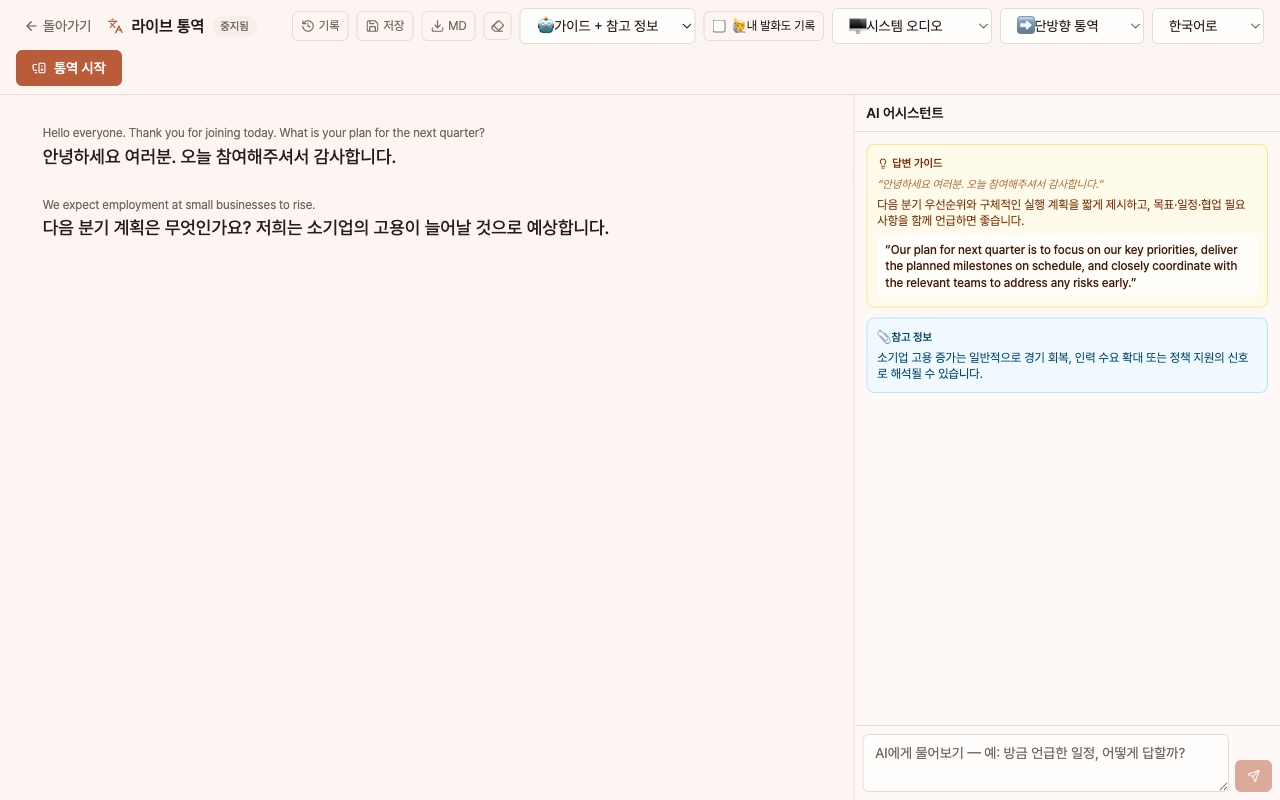
Screen Layout
- Top Bar: [Record] · [Save] · [MD] · 🤖 Assistant · 🙋 Record My Speech · Audio Source · Interpretation Mode · Language · [Start Interpretation]. If the window is narrow, it wraps into two lines.
- Left Interpretation Subtitles: The original text (small) and translation (large) are displayed alternately. Click a sentence to analyze and summarize it on the right.
- Right AI Assistant: When the other person asks a question, 💡 Response Guide (key points + sample answer in the other language) is automatically generated. Important terms and figures have 📎 Reference Info attached, and you can ask the AI, which knows the interpretation context, directly in the input box below. Cards and answers are shown in the Working Language set in Settings > General.
Interpretation Modes — One-Way and Two-Way
➡️ One-Way Interpretation (Default): Translates what is heard into the selected language. The original language is detected automatically, so any language meeting works. Use this to see what the other person says in your language during online meetings.
🔁 Two-Way Conversation: Set two languages, A and B. When A is heard, it’s translated to B; when B is heard, it’s translated to A. Subtitles are displayed in two columns (left: language A · right: language B), so each person only needs to read their own column. This is useful for talking with a foreign guest using a single laptop placed between you.
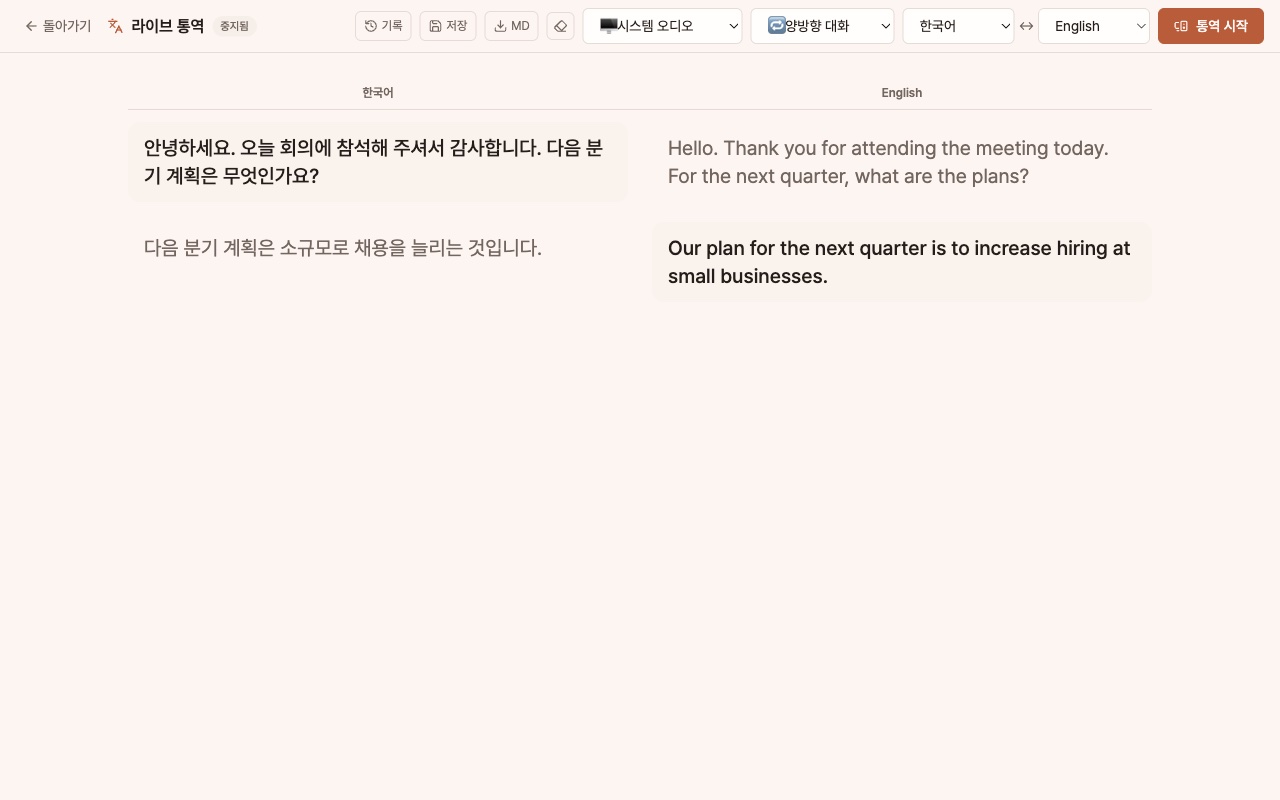
- Since you use one microphone, please speak one at a time. If both speak simultaneously, voices will mix.
- Two-way mode uses 2 Live connections, so interpretation costs are about double.
- Since both people view the same screen, assistant cards and distinguishing your own speech are not used.
- In the record/MD, each sentence is marked with its direction (e.g., ko→en).
Getting Started
- Audio Source: 🖥️ System Audio (Zoom, meetings, etc.—computer sounds) or 🎤 Microphone (sounds around you). System audio requires screen recording permission.
- 🙋 Record My Speech (for one-way/system audio): When enabled, your microphone input is recorded as "Me." Your speech is included in summaries and action plans. Since this uses 2 Live connections, costs are about double.
- 🤖 Assistant: Guide + Reference Info / Response Guide Only / Reference Info Only / Off. If off, the right panel disappears and subtitles are shown full width.
- Interpretation Mode and Language: For one-way, select one translation language; for two-way, set language A ↔ B. Supports 21 major languages.
- The interpretation model uses the Google (Gemini Live) key in Settings > Model. You can rename the model if needed.
- [Start Interpretation]. Subtitles appear within 1–2 seconds after you finish speaking. For long meetings, just leave it running. When the connection expires, the app automatically reconnects to the same session, so subtitles are not interrupted.
Recording, Saving, and Using Results
- When you stop interpretation, the transcript is automatically saved to the record list. Press [Save] during a session to update the content up to that point.
- In the top [Record] menu, you can open past interpretations to review the original, translation, timestamps, and assistant cards, as well as rename or delete them.
- Press [MD] to download the current content as a Markdown file. You can also download from each item in the record list.
- When you open a saved record, you’ll see [AI Summary], 📝 Report, and ✅ Action Plan presets, and you can directly request any format you want in the input box (e.g., "Extract only the requirements the other party requested"). Results are stored with the record and can be copied or downloaded as MD.
Tips for Use
- Before your meeting, fill out your Knowledge Base. The response guide will accurately reflect your products and pricing.
- Speakerphone recognition quality is better than earphones.
- Paste the transcript into your Meeting Notes to continue with summaries and tasks.
FAQ
Q: Will the other person know I’m using this tool?
No. It only operates on your own screen.
Q: The Assistant Card only appears in Korean.
It follows the Work Language set in Settings > General. If you change it to Japanese or English, the cards and answers will also appear in that language. Example answers for the other person to read will always be in their language.
Q: What about the cost?
Gemini Live call costs are proportional to the meeting time. If both directions and your own speech are recorded, there are two connections, so the cost is about double. You can check this on the Token Usage screen.