회의 녹음해서 자동으로 회의록 만들기. 회의에서 나온 할일 정리. record a meeting and get minutes automatically. extract action items from a meeting. DoDone(도도네) — 회의 녹음·업로드 → 화자 분리 전사 → 요약·실행 과제 → 할일·캘린더 연결. Record or upload a meeting → speaker-separated transcript → summary and action items → to-dos and calendar.
Meeting Notes · To-Do · Calendar — After the meeting, tasks remain
The real work of meetings is organizing them, not just holding them. With DoDone, you can record your meeting or upload a file, and it will transcribe who said what. With a single button, you can summarize and extract action items, linking them directly to your to-do list and calendar.
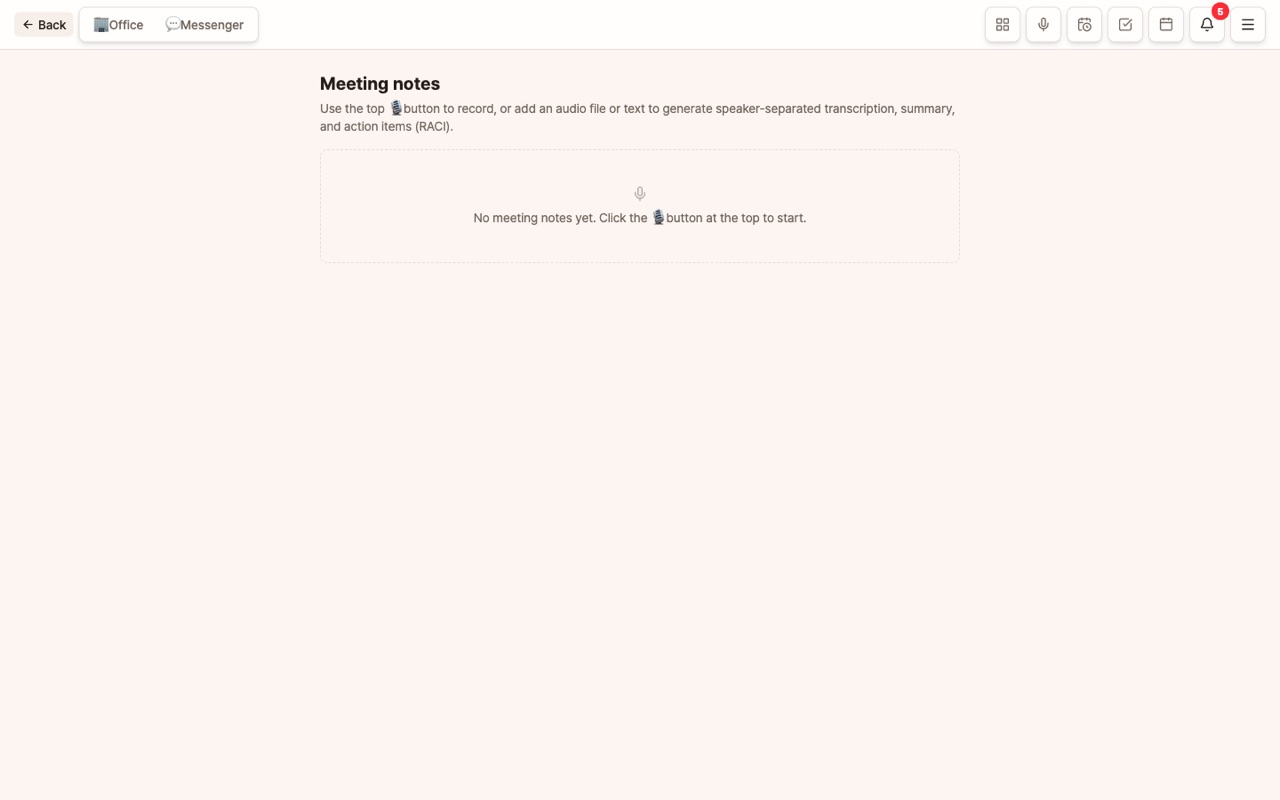
Meeting Notes
Go to Menu (≡) > Meeting Notes.
- Input: Start recording (works for both in-person and video meetings, as long as the sound comes through the speakers) / Upload audio file / Paste text
- Speaker-separated transcription happens automatically, and the spoken content appears first.
- [Summarize] → Summarizes key decisions and discussions. [Organize Tasks] → Extracts actionable tasks with assignees and deadlines (RACI).
- Edit the title and check participants. Organized tasks can be registered as To-Do items.
- Use the 📂 in the list to move the meeting note to a specific project. You can then view all meeting notes in Project ⋮ > Meeting Notes.
- 💬 Request with this meeting note: In the detail view, type your desired format in the input box, and it will respond based on the transcription (with speaker names), summary, and action items. There are presets for 📝 Reports · 📌 Decisions · ❓ Pending/Follow-up Checks · ✉️ Share via Email, and you can also ask directly, like "Summarize only the concerns raised by Manager Kim." The results are stored with the meeting note and can be copied, downloaded as MD, or deleted.
Audio files are saved on your computer. You can replay them anytime from 🎧 Replay Recording in the meeting note details (supports seeking and playback speed), and open the file in Finder/Explorer with [File Location]. Uploaded files use their original location.
To-Do
- Assign staff, directly delegate (turn the to-do into an AI staff task as-is), and set deadline reminders.
- To-dos nearing their deadline will trigger a desktop notification once a day.
Calendar
Register and check schedules and to-do deadlines all in one screen. The following appear here:
- Schedules you register directly
- To-do deadlines
- Expiry reminders from the Contract Management app
- Scheduled tasks from the Scheduler
- macOS Mac Calendar events (when the plugin is enabled)
How to Make the Most of It
- At the start of a meeting, say out loud "Three things to decide today"—this noticeably improves summary quality.
- Extracted to-dos can immediately become staff tasks by saying
Do this task. - Move customer meeting notes to a project so project staff can use them for context.
FAQ
Q: Where do the audio files go?
They are saved on your computer (app data folder) and can be played back from 🎧 Replay Recording in the meeting note details. Besides transcription, they are not uploaded to any external server. If you delete the meeting note, the app’s audio file is deleted as well.
Q: What models are used for transcription and summarization?
It uses the text/audio models set in Settings > Model. If transcription quality is low, try using speakerphone instead of earphones.