AI 직원에게 처음 일 시키는 법. AI로 보고서 파일 받기. how to give an AI employee its first task. get a report file from AI. DoDone(도도네) — 5분 실습 — 마스터에게 정리 시키기, 직원에게 Word 보고서 받기, 피드백으로 기억시키기. A 5-minute walkthrough — ask the Master for a summary, get a Word report from an employee, teach with feedback.
Try Giving Your First Task — 5-Minute Practice
Once you've finished setting things up, let's actually assign some work. The goal of this exercise is to create one text result and one file result, so you can get a feel for how DoDone works.
Practice 1 — Have the Master Summarize Something
- Switch to 💬 Messenger and open the 👑 Me (Master) channel on the left.
- Type in the input box:
Please list the top 5 things our company needs to do this week, in order of priority. - The Master will first announce the plan in one line and then respond right away. If it has read your company Knowledge Base and your personal memory, you'll get a list tailored to your company’s situation.
If the result is just generic advice unrelated to your company, it means your Knowledge Base is empty.
Practice 2 — Get a File from an Employee
- In the employee list on the left, click Researcher (or any employee).
- Type
$in the input box to bring up the plugin list. Choose Word or just type:$word Research the latest 3 trends in our industry and create a 2-page report including sources. - The employee will announce the plan and proceed in order: research → document writing. Long tasks may take a few minutes, and progress updates will keep appearing in the chat.
- Once finished, a docx file card will appear next to the chat. Click to preview, download, or open it in a folder.
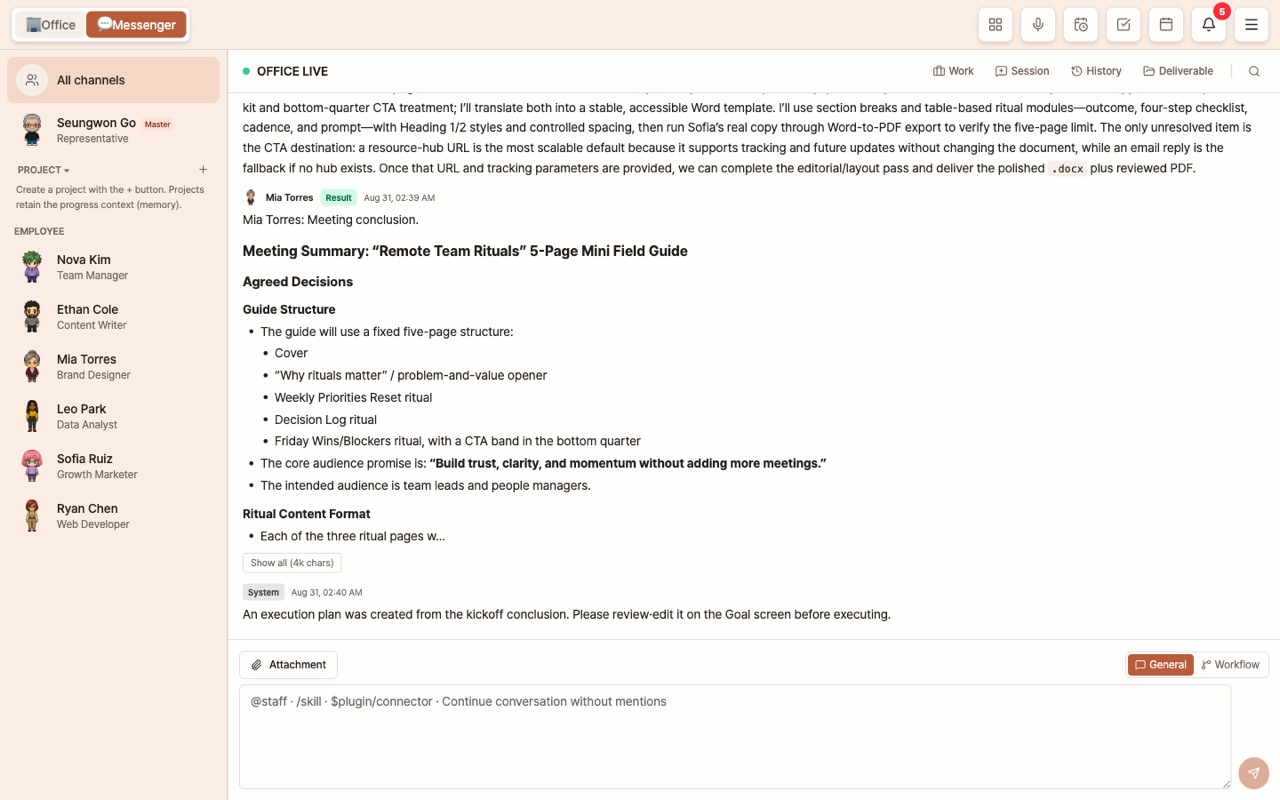
Practice 3 — Refine and Remember Results
- Hover over a result message to see the Copy · 👍 · 👎 buttons. If you click 👎 and write a reason like "Too many tables, focus on sentences," the employee will learn to adjust in that direction.
- If you type
From now on, please include a 3-line summary at the top of reports, it will be saved as a persistent preference with a 📌 icon. - If you want to continue editing the result you just made, just keep talking:
Please shorten the 2 pages to 1 page.
Good Things to Know When Giving Instructions
- Clarification: For tasks that require a decision ("Which direction?", "Which of the two?"), you'll get follow-up questions with choice buttons. If real-world info (like price or contact) is missing, it will ask instead of making something up.
- You can mention employees with
@Name, specify how to work with/Skill, and set the result format with$Plugin. For detailed rules, see Basics of Giving Commands. - In Office Map, move your character with the arrow keys and press Space next to an employee’s desk to open the same chat.
If You Want to Change Direction Mid-Task
There are three buttons on the progress card at the bottom of the chat.
- Stop This Step: Stops only the current call. The mission remains, so if you type new instructions below, it will continue with those. To just continue, click [Continue as is]. The previous step’s result will be used as is.
- Reset Context: Discards the accumulated conversation, clarifications, and intermediate results, leaving only the original request. Use this if the employee seems stuck in a loop.
- Cancel: Cancels the entire mission. This cannot be undone.
Tools that have already been executed (publishing, sending, etc.) will not be canceled even if you stop the task. In Telegram, /stop, /reset, and /cancel do the same thing, and any message you send after stopping will be treated as an additional instruction.
What to Read Next
- Explore the Interface — See where everything is
- Manage Employees — How memory, skills, and feedback accumulate
- Document & Media Deliverables — Create Word, Excel, slides, images, and videos